music Mercury Mariner 2009 SYNC Supplement
[x] Cancel search | Manufacturer: MERCURY, Model Year: 2009, Model line: Mariner, Model: Mercury Mariner 2009Pages: 90, PDF Size: 3.86 MB
Page 19 of 90
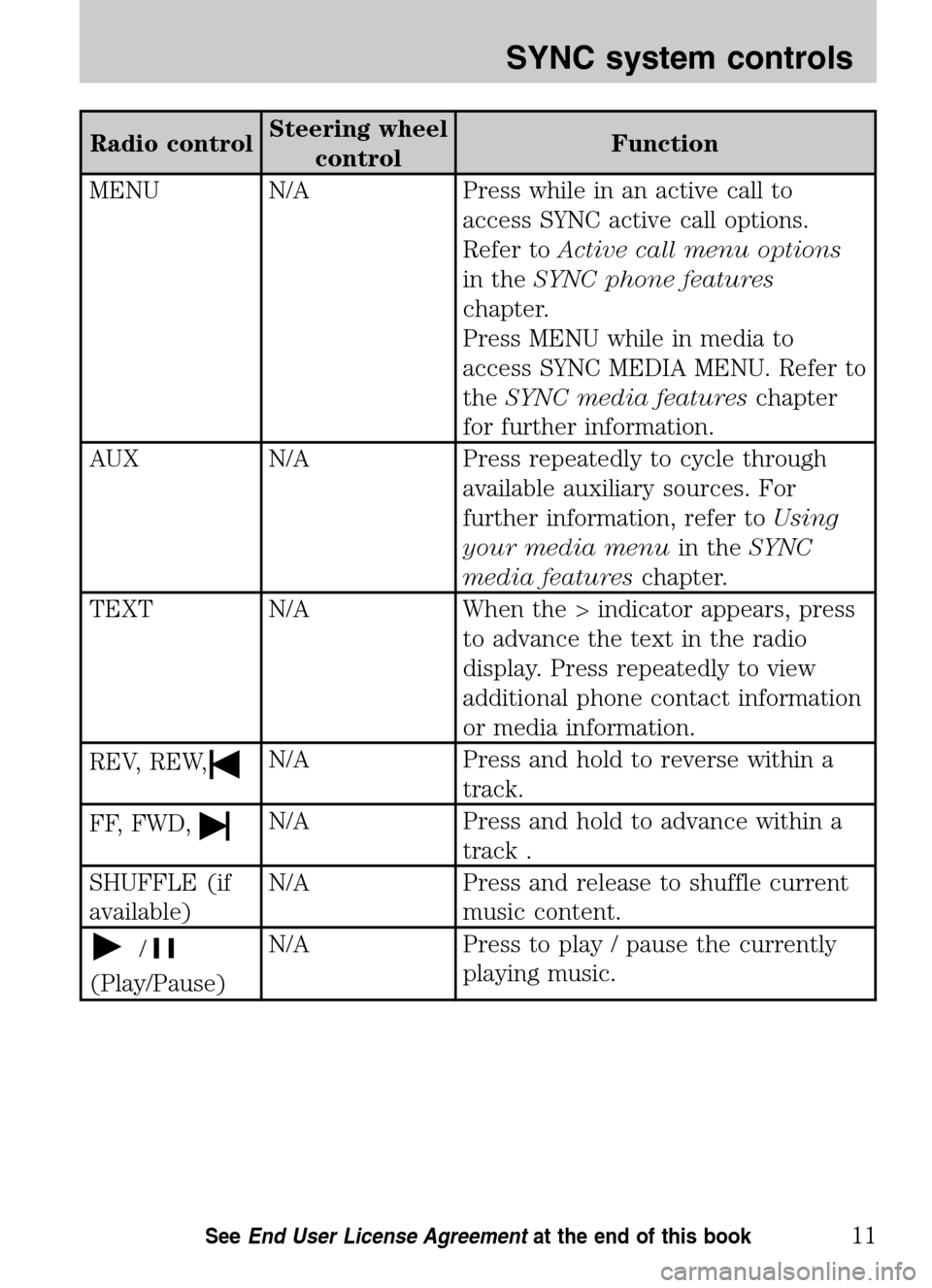
Radio control Steering wheel
control Function
MENU N/A Press while in an active call to access SYNC active call options.
Refer to Active call menu options
in the SYNC phone features
chapter.
Press MENU while in media to
access SYNC MEDIA MENU. Refer to
the SYNC media features chapter
for further information.
AUX N/A Press repeatedly to cycle through available auxiliary sources. For
further information, refer to Using
your media menu in theSYNC
media features chapter.
TEXT N/A When the > indicator appears, press to advance the text in the radio
display. Press repeatedly to view
additional phone contact information
or media information.
REV, REW,
N/A Press and hold to reverse within a track.
FF, FWD,
N/A Press and hold to advance within a track .
SHUFFLE (if
available) N/A Press and release to shuffle current
music content.
/
(Play/Pause) N/A Press to play / pause the currently
playing music.
2009 SYNC/MGM (mgm)
Supplement
USA (fus)
SYNC system controls
11SeeEnd User License Agreement at the end of this book
Page 47 of 90

VOICE COMMANDS IN MEDIA MODE
WARNING:Driving while distracted can result in loss of vehicle
control, accident and injury. Ford strongly recommends that
drivers use extreme caution when using cell phones, even with voice
commands. The driver’s primary responsibility is the safe operation of
their vehicle. Only use media and other devices not essential to the
driving task when it is safe to do so.
Voice commands when using the USB port
When using the USB port, you may say any of the following
commands: • Play all •Play
• Pause •What’s playing?
• Connections •Play next track
• Play previous track •Play next folder
2
• Similar music •Play previous folder2
• Autoplay on •Autoplay off
• Repeat off •Repeat on
• Shuffle on •Shuffle off
• Play genre
1•Play playlist
• Play album
• Play track
• Search genre
• Search album
• Refine artist
1
Voice commands are not available until indexing is complete.2Voice commands only available in folder mode. For more information,
refer to Exploring the USB device later in this chapter.
Note: In the above possible commands, “
that it could be the name of any desired group, artist, etc.
Autoplay: With this feature ON, SYNC allows you to listen to music
which has already been randomly indexed during the indexing process.
With this feature OFF, SYNC will not begin to play any of your music
until all media has all been indexed.
Note: The larger the number of songs the system has to index, the
longer indexing will take. Indexing times can vary from device to device.
2009 SYNC/MGM (mgm)
Supplement
USA (fus)
SYNC media features
39SeeEnd User License Agreement at the end of this book
Page 48 of 90

Search/Play Genre:You can search for and play a specific genre (type)
of music. SYNC will search all the data from your indexed music and, if
available, will begin to play that type of music.
Note: You can only play genres of music which are present in the
GENRE metadata tags that you have on your digital media player.
Similar music: You can tell the system to play music ‘similar’ to what
you are currently playing from the USB port. SYNC will use the metadata
information of each indexed song to compile a playlist for you.
Search/play artist/track/album: You can search for a specific
artist/track or album from the music SYNC has indexed through the USB
port.
Refine: This allows you to ‘refine’ your previous commands. For
example, if you told SYNC to search and play all music by a certain
artist, you could then tell SYNC to “refine album” and choose a specific
album from the list to view. If you then select ‘Play’, the system will only
play music from that specific album.
Voice commands while using Line in
While using the Line in feature (Auxiliary input jack), you may
speak the following commands:
• SYNC •Line in
• Bluetooth Audio •Cancel
• Phone •Voice settings
Voice commands when in Bluetooth audio mode
When in Bluetooth audio mode, you may use the following
commands: • Play •Connections
• Pause •Play next track
• Play previous track
Note: Please refer to your device’s user guide to see if these commands
are supported for Bluetoothaudio.
2009 SYNC/MGM (mgm)
Supplement
USA (fus)
SYNC media features
40SeeEnd User License Agreement at the end of this book
Page 49 of 90

At any time, you may say these commands: • SYNC •USB
• Help •Bluetooth Audio
• Line in •Phone
• Voice settings •Read message
• Cancel
Connecting a digital media player to SYNC via the USB port
Note: If your digital media player has an ON/OFF switch, ensure that
the device is ON.
1. Plug the device into the vehicle’s USB port.
2. Press AUX repeatedly until SYNC USB appears in the radio display.
3. Depending on how many digital media files are on your connected
device, INDEXING may appear in the radio display until indexing is
complete. You will then be taken to the PLAY MENU. Press OK.
4. Press
/to cycle through selections of: Play All, Albums, Genres,
Playlists, Tracks, Explore USB, Similar Music and Return.
5. When the desired PLAY MENU selection appears in the radio display,
press OK to build your desired music selection.
What’s playing?
At any time while a track is playing, you can press
or VOICE and say,
“What’s playing?”. SYNC will read the metadata tags of the playing track
to you (if populated).
USING YOUR MEDIA MENU
SELECT SRC (SOURCE) will allow you to select from various possible
SYNC media sources, such as: USB, BT STEREO or LINE IN (Auxiliary
Input jack).
To access the SELECT SRC (SOURCE) within the Media section of
SYNC:
Note: To scroll, press
SEEKor/.
1. Press AUX repeatedly until SYNC appears.
2. Press MENU to enter the MEDIA MENU.
2009 SYNC/MGM (mgm)
Supplement
USA (fus)
SYNC media features
41SeeEnd User License Agreement at the end of this book
Page 50 of 90

3. Scroll repeatedly to cycle through:
• PLAY MENU - Refer to Using SYNC’s play menu later in this chapter.
• SELECT SRC (SOURCE) (Select source)
• MEDIA SETTINGS
• APPLICATION
• SYSTEM SETTINGS
• EXIT MENU
4. When the desired selection appears in the radio display, press OK to
confirm. Refer to the following sections for further information on these
selections.
Selecting different media sources
The MEDIA MENU in SYNC allows you to select and play music from
different media sources (USB, BT STEREO or LINE IN - Auxiliary Input
jack). Once accessed, you can then play music, shuffle, access your
playlists, etc. To access this menu:
Note: To scroll, press
SEEKor/.
1. Press AUX repeatedly until SYNC appears.
2. Press MENU to access the MEDIA MENU.
3. Press OK.
4. Scroll repeatedly until SELECT SRC (Select source) appears in the
radio display.
5. Press OK to confirm.
6. Scroll repeatedly to cycle through:
USB
BT STEREO
Note: This is a device dependent feature.
LINE IN
Accessing and using your USB port
Your vehicle is equipped with a USB port. (For exact location, refer to
your vehicle’s Owner’s guide .) You can use the USB port to plug in and
access media devices as well as charge devices (if supported by your
device). For a list of compatible media players, refer to
www.SyncMyRide.com.
2009 SYNC/MGM (mgm)
Supplement
USA (fus)
SYNC media features
42SeeEnd User License Agreement at the end of this book
Page 52 of 90
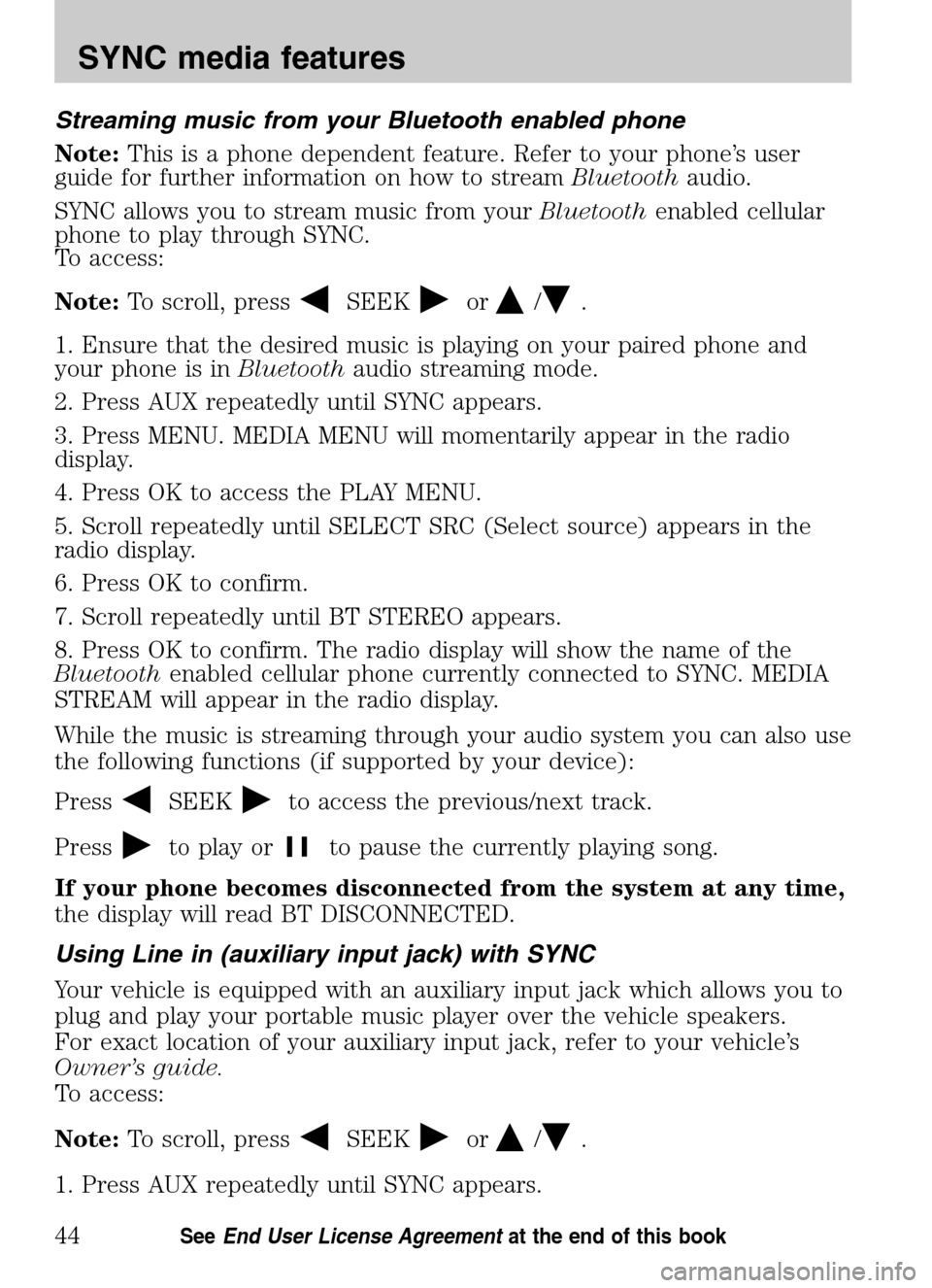
Streaming music from your Bluetooth enabled phone
Note: This is a phone dependent feature. Refer to your phone’s user
guide for further information on how to stream Bluetoothaudio.
SYNC allows you to stream music from your Bluetoothenabled cellular
phone to play through SYNC.
To access:
Note: To scroll, press
SEEKor/.
1. Ensure that the desired music is playing on your paired phone and
your phone is in Bluetoothaudio streaming mode.
2. Press AUX repeatedly until SYNC appears.
3. Press MENU. MEDIA MENU will momentarily appear in the radio
display.
4. Press OK to access the PLAY MENU.
5. Scroll repeatedly until SELECT SRC (Select source) appears in the
radio display.
6. Press OK to confirm.
7. Scroll repeatedly until BT STEREO appears.
8. Press OK to confirm. The radio display will show the name of the
Bluetooth enabled cellular phone currently connected to SYNC. MEDIA
STREAM will appear in the radio display.
While the music is streaming through your audio system you can also use
the following functions (if supported by your device):
Press
SEEKto access the previous/next track.
Press
to play orto pause the currently playing song.
If your phone becomes disconnected from the system at any time,
the display will read BT DISCONNECTED.
Using Line in (auxiliary input jack) with SYNC
Your vehicle is equipped with an auxiliary input jack which allows you to
plug and play your portable music player over the vehicle speakers.
For exact location of your auxiliary input jack, refer to your vehicle’s
Owner’s guide.
To access:
Note: To scroll, press
SEEKor/.
1. Press AUX repeatedly until SYNC appears.
2009 SYNC/MGM (mgm)
Supplement
USA (fus)
SYNC media features
44SeeEnd User License Agreement at the end of this book
Page 53 of 90
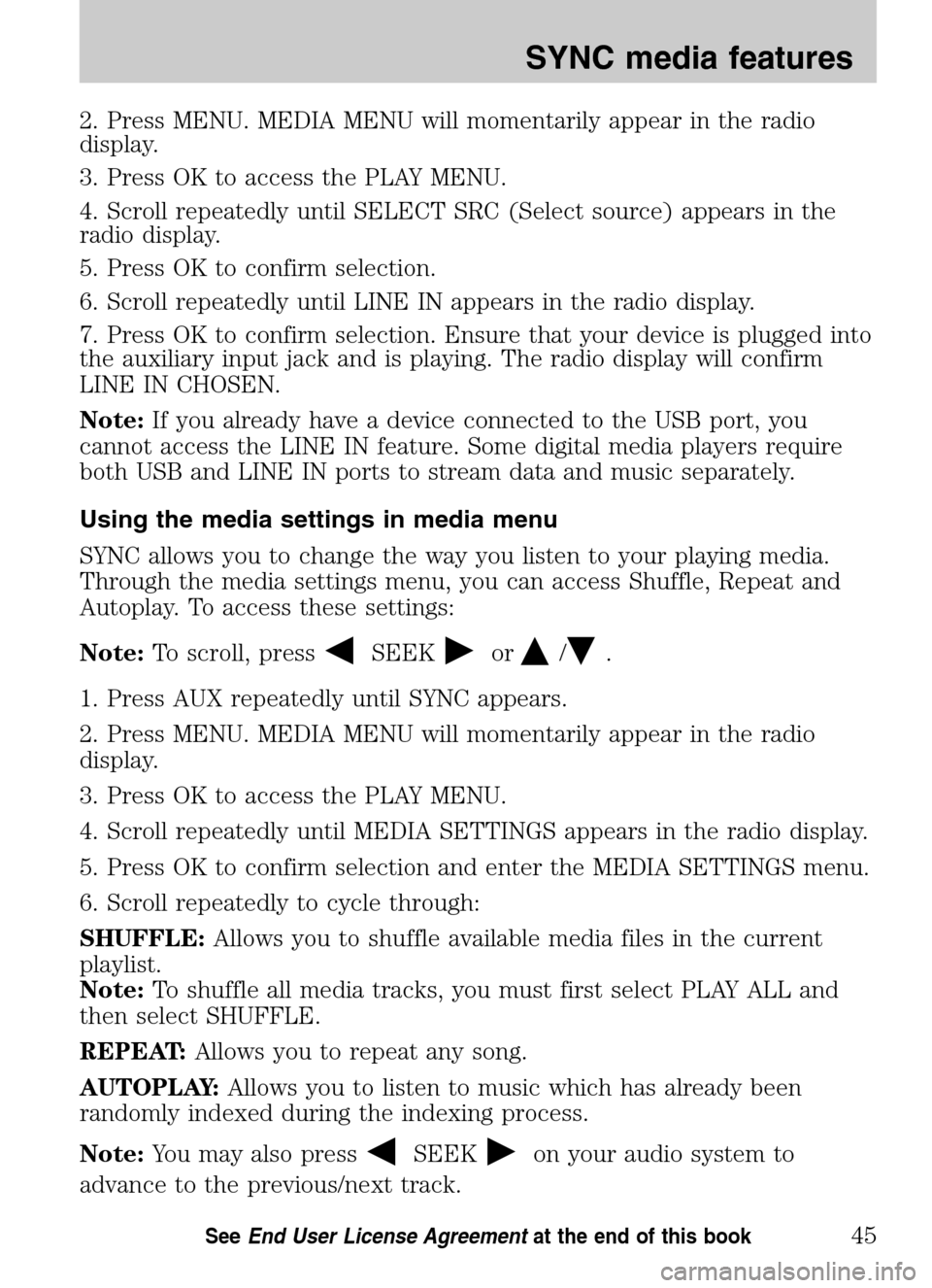
2. Press MENU. MEDIA MENU will momentarily appear in the radio
display.
3. Press OK to access the PLAY MENU.
4. Scroll repeatedly until SELECT SRC (Select source) appears in the
radio display.
5. Press OK to confirm selection.
6. Scroll repeatedly until LINE IN appears in the radio display.
7. Press OK to confirm selection. Ensure that your device is plugged into
the auxiliary input jack and is playing. The radio display will confirm
LINE IN CHOSEN.
Note: If you already have a device connected to the USB port, you
cannot access the LINE IN feature. Some digital media players require
both USB and LINE IN ports to stream data and music separately.
Using the media settings in media menu
SYNC allows you to change the way you listen to your playing media.
Through the media settings menu, you can access Shuffle, Repeat and
Autoplay. To access these settings:
Note: To scroll, press
SEEKor/.
1. Press AUX repeatedly until SYNC appears.
2. Press MENU. MEDIA MENU will momentarily appear in the radio
display.
3. Press OK to access the PLAY MENU.
4. Scroll repeatedly until MEDIA SETTINGS appears in the radio display.
5. Press OK to confirm selection and enter the MEDIA SETTINGS menu.
6. Scroll repeatedly to cycle through:
SHUFFLE: Allows you to shuffle available media files in the current
playlist.
Note: To shuffle all media tracks, you must first select PLAY ALL and
then select SHUFFLE.
REPEAT: Allows you to repeat any song.
AUTOPLAY: Allows you to listen to music which has already been
randomly indexed during the indexing process.
Note: You may also press
SEEKon your audio system to
advance to the previous/next track.
2009 SYNC/MGM (mgm)
Supplement
USA (fus)
SYNC media features
45SeeEnd User License Agreement at the end of this book
Page 54 of 90
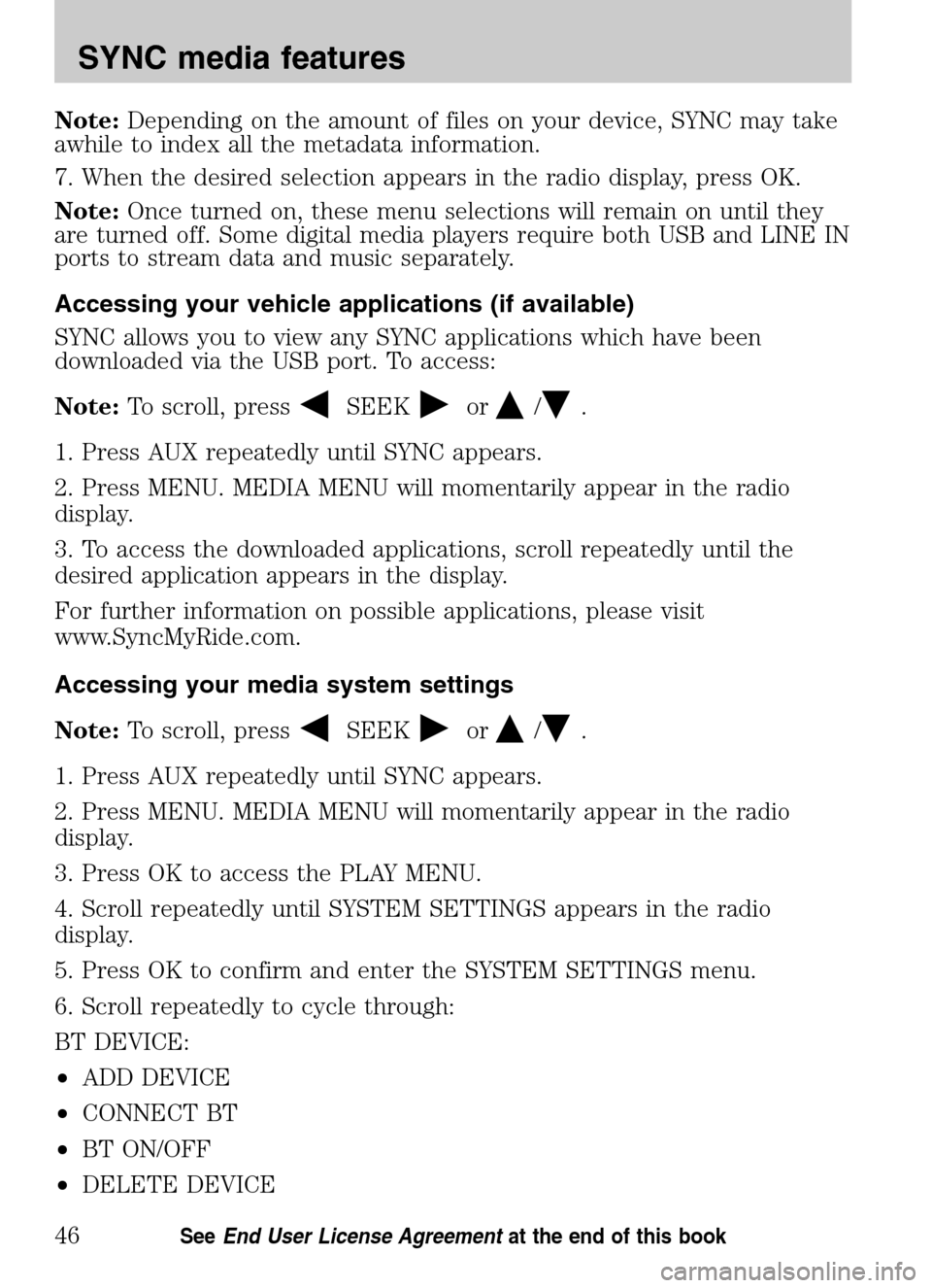
Note:Depending on the amount of files on your device, SYNC may take
awhile to index all the metadata information.
7. When the desired selection appears in the radio display, press OK.
Note: Once turned on, these menu selections will remain on until they
are turned off. Some digital media players require both USB and LINE IN
ports to stream data and music separately.
Accessing your vehicle applications (if available)
SYNC allows you to view any SYNC applications which have been
downloaded via the USB port. To access:
Note: To scroll, press
SEEKor/.
1. Press AUX repeatedly until SYNC appears.
2. Press MENU. MEDIA MENU will momentarily appear in the radio
display.
3. To access the downloaded applications, scroll repeatedly until the
desired application appears in the display.
For further information on possible applications, please visit
www.SyncMyRide.com.
Accessing your media system settings
Note: To scroll, press
SEEKor/.
1. Press AUX repeatedly until SYNC appears.
2. Press MENU. MEDIA MENU will momentarily appear in the radio
display.
3. Press OK to access the PLAY MENU.
4. Scroll repeatedly until SYSTEM SETTINGS appears in the radio
display.
5. Press OK to confirm and enter the SYSTEM SETTINGS menu.
6. Scroll repeatedly to cycle through:
BT DEVICE:
• ADD DEVICE
• CONNECT BT
• BT ON/OFF
• DELETE DEVICE
2009 SYNC/MGM (mgm)
Supplement
USA (fus)
SYNC media features
46SeeEnd User License Agreement at the end of this book
Page 56 of 90
10. Once pairing is successful, the device name and then CONNECTING
and then CONNECTED will appear in the radio display.
You can now change SYNC sources to BT AUDIO and stream music from
your device.
Adding a Bluetooth media device which is in discoverable mode
Note: This is a speed dependent feature. Your vehicle must be moving
less than 3 mph (5 km/h) to use this feature.
Note: If your phone supports streaming Bluetoothaudio and has already
been paired with SYNC as a phone, you do not have to go through the
pairing process again.
Note: Use this process when your device generates the PIN instead of
SYNC.
Note: To scroll, press
SEEKor/.
1. Press AUX repeatedly until SYNC appears.
2. Press MENU. MEDIA MENU will momentarily appear in the radio
display followed by PLAY MENU.
3. Scroll repeatedly until SYSTEM SETTINGS appears in the radio
display.
4. Press OK to confirm and enter the SYSTEM SETTINGS menu.
5. Scroll until BT (BLUETOOTH) DEVICES appears in the display. Press
OK to confirm and enter the BT DEVICE menu.
6. Scroll until ADD DEVICE appears in the radio display. Press OK to
confirm.
7. When FIND SYNC appears in your radio display, scroll repeatedly until
FIND DEVICES appears. Press OK to confirm.
8. After the search for active BT DEVICE is complete, scroll to find the
desired device. Press OK to confirm.
9. Refer to your device’s user guide for instructions on how to put your
device into discoverable mode. When your media device gives you a PIN,
enter that PIN into SYNC using voice commands (or using the 0–9
memory presets on your audio system, if equipped), when prompted.
10. When you have entered your last digit via voice, say “Enter”.
11. When the process is complete, SYNC will display CONNECTED and
the name of the device will appear in the radio display.
You can now change SYNC sources to BT (BLUETOOTH) AUDIO and
stream music from your device.
2009 SYNC/MGM (mgm)
Supplement
USA (fus)
SYNC media features
48SeeEnd User License Agreement at the end of this book
Page 61 of 90
1. Press AUX repeatedly until SYNC appears.
2. Press MENU. MEDIA MENU will momentarily appear in the radio
display.
3. Press OK to access PLAY MENU.
4. Scroll repeatedly until SYSTEM SETTINGS appears in the radio
display.
5. Press OK to confirm and enter the SYSTEM SETTINGS menu.
6. Scroll repeatedly until ADVANCED appears in the radio display.
7. Press OK to confirm and enter the ADVANCED menu.
8. Scroll repeatedly until MASTER RESET appears in the radio display
9. Press OK. SYNC will ask you to confirm the master reset.
10. Press OK to confirm. The radio display will read RESET DONE.
SYNC will take you back to the ADVANCED SETTINGS menu.
Installing new vehicle applications
You can download new software applications (if available) and then load
the desired applications onto SYNC through your USB port. Please refer
to www.SyncMyRide.com for further information.
USING SYNC’S PLAY MENU
The SYNC PLAY MENU allows you to play your music by playing all
selections, by artist listing, album listing, genre listing, playlists, tracks,
or by selecting similar music to what is currently playing. You can also
choose to ‘Explore USB’ which will allow you to explore supported digital
music files on your playing device.
WARNING: SYNC PLAY MENU manual control is a backup
interface to voice commands. Do not use SYNC PLAY MENU
manual control while driving.
Note: The PLAY MENU is only available for indexable media through the
USB port. This is not available for LINE IN and BT AUDIO.
SYNC is able to organize and sort your indexed media from your playing
device by metadata tags. Metadata tags are descriptive software
identifiers embedded in your media files which provide information about
the media file. SYNC supports the following metadata tags:
• Artist
• Album
2009 SYNC/MGM (mgm)
Supplement
USA (fus)
SYNC media features
53SeeEnd User License Agreement at the end of this book